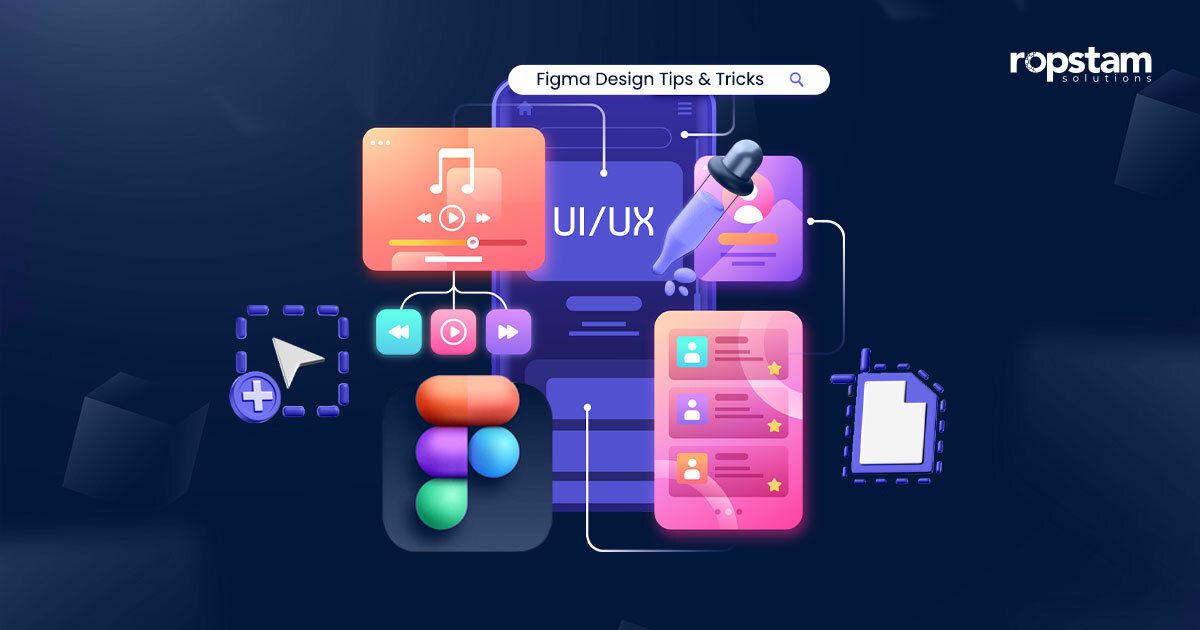
Figma is an all-rounded and intuitive design tool used to do graphic design work such as prototyping, wireframing for websites, and designing mobile app & web application interfaces. This vector-based graphics editing tool has over the years become an essential within the designers and developers’ toolkit.
Figma provides features that allow for efficient web-flow design and prototyping for User Interface (UI) design and User Experience (UX) design of a web page or a mobile app as per the project requirements.
There can be a time when a beginner or professional UI/UX designer can get stuck on a design problem. At that time, instead of scratching your head, you can take advantage of amazing Figma tips and tricks that will help you solve your design problems and use the tool more efficiently.
For example, designers can use the auto-layout feature, use a base unit of 8PX, keep your grids nice and clean, etc. to quickly complete your Figma designs. Implementing these suggestions in the design routine will let Figma designers save themselves a few extra run-ins with annoying design obstacles along the way.
Here is an extensive list of suggestions and recommendations of using Figma for those who are new to this design tool or looking for extra insight into Figma as a professional.
- Use the auto-layout
- Use a base unit of 8px nudge
- Keep your designs neat and tidy
- Insert images and videos into placeholder in a flash
- Swap out component instances
- Use keyboard shortcuts
- Use true-false logic
- Speed up bulk updates
- Use proper naming conventions
1. Use the auto-layout
This feature of Figma could save you the hassle of manually resizing and re-aligning elements in your designs whenever you introduce a new button, list, or edit text within a component.
The feature can be added to frames or components by using Shift + A. Auto-layout makes your design more responsive to changes. When you enable Auto layout, your design will grow or shrink based on the paddings or margins applied to it. For example, a button with auto-layout applied to it will automatically change its size so that the text inside it fits perfectly.
2. Use a base unit of 8px nudge
Aligning objects manually in Figma and doing the complex maths to calculate the correct number of points you need to move your elements to ensure perfect alignment can be nerve-wracking. To avoid this, we recommend using the right ‘nudge amount’ for all your Figma designs so that you can efficiently and quickly adjust alignment and resize components without getting into complex calculations.
While the default nudge amount in Figma is 10px, we suggest 8px nudge amount to ensure a visually pleasing and aesthetically balanced interface. That could very well be the answer to all your alignment ambiguities.
Nudging works by holding down the Shift key and pressing any arrow key to move the selected element in that direction. Whilst, if you want to change the default nudge amount to any number, here’s how to do it:
go to Menu > Preferences > Nudge amount > 8.
3. Keep your designs neat and tidy
Once you have introduced multiple components to your UI/UX design on Figma, looking at all the unaligned layers or elements within the frame can be daunting. Aligning every element individually while keeping uniform distribution in mind can be a lot of work.
“Distribute Horizontally” or “Distribute Vertically” allows you to even out the horizontal or vertical spacing between layers or elements. Once you have selected multiple layers that need to be aligned, this feature automatically applies equal spacing to selected layers.
“Tidy up” is another feature of Figma that can help you achieve the same uniform spacing. One advantage of using tidy-up over distribution is that tidy-up allows you to align objects across both axes at the same time.
Here’s how you can take care of the Alignment and tidiness in the blink of an eye:
- Distribute Horizontal Spacing: Alt + Shift + H
- Distribute Vertical Spacing: Alt + Shift + V
- Tidy Up: Ctrl + Alt + Shift + T
4. Insert images and videos into placeholder in a flash
Once you have set up your interface layout in Figma, it’s time to complete the mockup by inserting placeholder images and videos. Just before you start doing it one at a time, we have a trick for you to speed up this time-consuming process.
After selecting the images and videos that you need, use the following keyboard shortcuts:
- MacOS: Shift + Command-K
- Windows: Shift + Ctrl + K
You can now click on the image/video placeholder where you want to add your selected image or video, one by one, from the stack of selected files.
5. Swap out component instances
Components in Figma allow you to create and use multiple variants of a single element in your design. These variants are called Instances. You can use “Quick Insert” to swap out one component instance for another one. To do so:
- Select the instance you want to swap.
- Press Shift + I to open quick insert.
- Look for the instance that you want to swap with.
- Hold down Option (Mac) or Ctrl (Windows).
If the instance you want to swap your selection with is within the same frame or hierarchy, you can use a Single Click menu to swap the component.
6. Use keyboard shortcuts
Knowing your keyboard shortcuts can significantly speed up your design process in Figma. Almost every action that requires you to use your mouse can be carried out with a keyboard shortcut.
Here are some shortcuts for you to remember:
- Ctrl+Alt/Opt+C: Let you copy object/component properties to the clipboard
- Ctrl+Alt/Opt+V: Paste object properties from the clipboard to another object.
- Ctrl+Shift+R: Replace the selected element with the one copied to your clipboard.
- Ctrl + L: Copy the link of your current file/project
- Ctrl+Shift+?: View all available Figma shortcuts
7. Use true-false logic
When working with design elements on Figma, use boolean logic labels (on/off, yes/no, 1/0) to help you distinguish between two variants of the same components. This is also helpful for keeping track of the elements you have in your mobile app or web app design.
8. Speed up bulk updates
You can create multiple variants for each of your base components in Figma. Since every variant contains its base component, it makes bulk updates quicker and easier than ever. Now, you only need to update the base or parent component. Figma will automatically apply the changes to the child components.
You can also make changes to the child components separately and they won’t be seen in the parent component unless you choose to tap the option: “Push changes to main component”.
9. Use proper naming conventions
Ensure your files and layers in Figma are well-named to avoid clutter and confusion. To rename a specific layer, right-click on it and select ‘Rename.’ You can also double-click on the layer name to rename it. To rename multiple layers simultaneously, select the layers you want to rename and press Ctrl + R.

Why choose Figma for UI/UX design?
Figma is a highly sought-after tool for designers with varying levels of expertise. It is an intuitive and easy to use tool that can meet all your design requirements ranging from basic design tools to advanced UI/UX-focused features. Beyond market-competitive UI/UX design for websites or mobile applications, Figma’s versatility also makes it ideal for website design prototyping.
Moreover, Figma’s prototyping features allow you to test and tweak in real-time instead of relying on post-development testing, effectively reducing the number of iterations you have to produce before the final product.
But what if you want to collaborate with your team in real-time? Maybe you want to demonstrate a new idea or feature or tweak an existing component. Figma allows multiple users to edit the same project file simultaneously, with real-time updates for all users. This, along with the software’s intuitive interface, makes it the perfect and revolutionary graphic design and user interface editing app for all your front-end design needs.
How to design industry-standard UI/UX using Figma?
It is quite easy to design industry-standard UI/UX using Figma, thanks to the huge Figma community. Whether you need inspiration or a quick fix for your design problem, community files may have the resource you are looking for! These resources shared by the Figma community include UI kits, Plug-ins, or ready-to-use resources that can help you elevate your design.
Figma plug-ins, for example Figma plugins for code, are undeniably essential. Whether they are community-created files or useful Figma plugins these useful resources can help you bring professionalism to your design and workflow.
Here are some useful community files and plugins to get you started!
- Wireframe – Assists you speed up wireframe creation [Plug-in]
- UIHUT – A great way to go if you are looking for new design resources.[Plug-in]
- TinyImageCompressor – Quickly export compressed versions of images [Plug-in]
- Unsplash – Access some high-quality, royalty-free images. [Plug-in]
- Phosphor Icons – A family of icons with multiple fill options. [Community Files]
- iOS UI Kit for Figma [Community File]
No matter where you are in your design journey or the nature of your design-related work, Figma is a name you will come across at some point in your career. So, there is no better time than now to pick up some neat Figma hacks to enhance the quality of your designs.
Thou there is no better solution to your UI/UX related design problems, than the dedicated and well—trained team of designers at Ropstam. With Figma on hand, and unmatched expertise, our designers will ensure that you UI/UX project stands out and delivers to your needs. Get in touch with us right now to get professional UI/UX design for your website or mobile app.