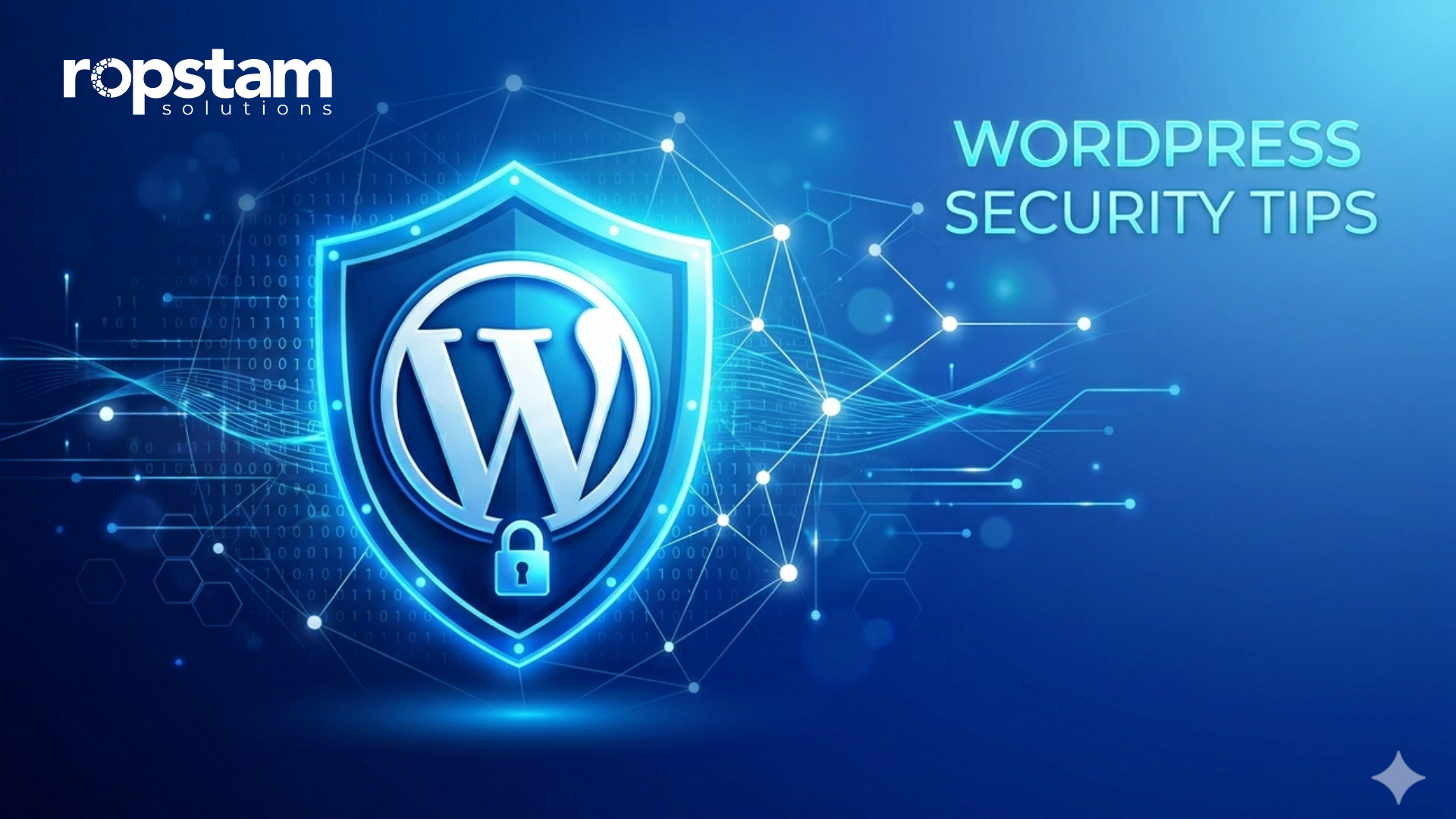
Running a business website on WordPress is a smart choice. It is quick to set up, easy to manage, and flexible for both small sites and big online stores. But that flexibility also makes security very important for your business. These WordPress security tips help you lower risk, avoid downtime, and protect your brand. If you want expert help building a secure, scalable WordPress site, visit here to start your project.
In this guide, you will learn WordPress security for beginners in a clear, simple way. We will cover the biggest risks, the most common weak spots, and the steps that matter most. You will also get an easy checklist, cost ideas, and tool options. By the end, you will know how to secure WordPress website items like admin access, payments, customer data, and content—without getting stuck in hard tech talk.

Business owner using a laptop with security icons showing a protected WordPress website.
Why WordPress Matters for Modern Businesses
WordPress powers many business websites for good reasons. It can support your marketing, sales, support, and hiring in one place.
Key business reasons WordPress works:
- Fast launch: publish pages and campaigns quickly
- Lower cost: often cheaper than many custom systems
- Easy to grow: add new features as you grow
- Team control: your team can update content without waiting
- SEO support: good structure and strong plugin options
But the business value drops fast if your site gets hacked.
Security problems can cause:
- Lost leads when your site is down
- Lower rankings after malware warnings
- Refunds and chargebacks if checkout is attacked
- Brand harm when people stop trusting you
That is why WordPress security tips are not optional. They protect your income.
What Is WordPress Website Development for Business?
WordPress website development is the work that turns WordPress into a real business tool, not just a simple template site.
It often includes:
- Planning: goals, pages, and a content plan
- Design: mobile-first layout and clear buttons
- Build: themes, plugins, and custom features
- Connections: CRM, email, payments, analytics
- Security and speed: protection steps, backups, performance
A strong build also uses WordPress security best practices from day one.
If you want a real-life example of steady delivery and long-term support, learn from this (real life example): see how we delivered results in this project. It shows how a clear process, testing, and safe releases help business results over time.
What Are WordPress Security Tips Every Beginner Should Know? (Definition)
WordPress security tips are simple, high-value steps—like updating software, protecting logins, limiting access, using backups, and scanning for malware—that lower the chance of hacking, downtime, and data loss on a WordPress website.
Use these tips to:
- protect customer details
- keep your site online
- avoid expensive emergency fixes
- keep trust and search visibility strong
Business Value: How Strong Security Supports Growth
Security is not only an IT topic. It is a business growth topic.
Here is how WordPress security tips help business performance:
- Less downtime: your site stays open for leads and sales
- More trust: visitors feel safer sharing details
- Lower surprise costs: fewer emergency fixes and cleanups
- More stable SEO: less risk of malware warnings
- Cleaner reports: less fake spam traffic in analytics
- Safer teamwork: fewer stolen accounts and mistakes
If you run ads, collect forms, or sell online, security supports your results.
To see how strong systems and stable delivery can improve operations, explore this (this case study): explore this business transformation case study. It is a good reminder that stability and trust are part of a great customer experience.
Scalable: 10 Essential WordPress Security Tips Every Business Owner Should Know
Below are WordPress security tips that work for small sites and growing brands. Start with the first three today.
1) Keep WordPress, Themes, and Plugins Updated
Old software is one of the biggest risks.
Do this every week:
- update WordPress core
- update themes
- update plugins
- delete themes and plugins you do not use
Why it matters:
- updates fix known security problems
- hackers look for old versions first
This is one of the easiest WordPress security best practices with big impact.
2) Use Strong Passwords and a Password Manager
Weak passwords make it easy for attackers.
Use:
- 12–16+ characters
- a mix of letters, numbers, and symbols
- a different password for each account
Also:
- use a password manager for your team
- do not share one login with many people
- avoid common patterns like “admin/admin”
These WordPress login security tips help stop basic break-ins.
3) Enable WordPress Two Factor Authentication (2FA)
Passwords alone are not enough today.
To enable WordPress two factor authentication, use a trusted plugin and require 2FA for:
- admins
- editors
- anyone who can publish or install plugins
Business value:
- even if a password leaks, attackers still cannot get in
- fewer urgent “we got hacked” moments
This is one of the highest ROI WordPress security tips for beginners.

Two-factor authentication example with a phone code and a secure admin login on a laptop.
4) Limit Login Attempts and Protect the Login Page
Many attacks start at your login page.
Add simple protection:
- limit login attempts
- add CAPTCHA if needed
- change the default login URL (do this carefully)
- block suspicious IP addresses
Keep it simple. Too many rules can block real users too.
These WordPress login security tips help you protect WordPress site from hackers without slowing your team.
5) Use Trusted WordPress Security Plugins (and Configure Them Right)
Security plugins can help a lot, but only if you set them up correctly.
Helpful plugin features include:
- firewall rules
- login protection
- malware scanning
- file change alerts
What to avoid:
- using many security plugins that fight each other
- turning on every setting without knowing what it does
Pick one strong option and set it up well. This is how WordPress security plugins support your plan.
6) Add SSL (HTTPS) and Secure Your Forms
SSL helps protect data moving between your site and visitors.
Make sure:
- your full site runs on HTTPS
- forms use secure connections
- payment pages are always encrypted
Also check:
- your contact forms do not email sensitive details
- spam filters are turned on
This supports trust and can help SEO too. It is a key part of how to secure WordPress website forms and lead capture.
7) Use Proper User Roles and Access Control
Many hacks start with “too much access.”
Do this:
- give each user only the access they need
- review your user list every month
- remove old contractors and inactive users
- do not give “Administrator” to everyone
Simple role guide:
- Admins: owners and trusted tech leads only
- Editors: content managers
- Authors: writers
- Subscribers: customers or members
Good access control is one of the most missed WordPress security tips and a common cause of problems.
8) Set Up WordPress Backup and Security Together (Not Separately)
Backups are your safety net. Without them, fixes are slow and costly.
A strong WordPress backup and security setup includes:
- automatic daily backups (or more for busy stores)
- offsite storage (not only on the same server)
- restore testing with one-click recovery
- backup before updates
Also keep:
- a second “monthly snapshot” backup
- a simple recovery plan your team can follow
Backups do not stop attacks, but they reduce the damage. This is why backups are key WordPress security tips for business sites.
9) Add WordPress Malware Protection and Monitoring
Malware can hurt customers, rankings, and your brand image.
WordPress malware protection should include:
- scheduled malware scans
- file change tracking
- alerts for suspicious updates
- blacklist checks (Google warnings)
If your business runs ads or SEO, malware can waste money fast.
Definition: What is WordPress malware protection?
WordPress malware protection is a set of tools and habits—scanning, monitoring, cleanup, and prevention—that helps find harmful code early and remove it before it harms your site, users, or search results.
This is one of the most useful WordPress security tips for beginners who want peace of mind.

Malware scan checking a website and blocking harmful code to protect a WordPress site.
10) Choose Secure Hosting and Add a Web Application Firewall (WAF)
Hosting is part of your security plan.
Look for hosting that offers:
- malware scanning support
- server-level firewalls
- automatic updates (when safe)
- account isolation (so other sites cannot affect yours)
- fast support during incidents
A WAF is a protection layer that helps block common attacks before they reach your WordPress site.
This step supports WordPress security best practices and helps protect WordPress site from hackers as your traffic grows.
Common WordPress Security Mistakes (and How to Avoid Them)
Many security issues come from simple choices made early.
Here are common WordPress security mistakes to avoid:
- using “admin” as a username
- keeping unused plugins “just in case”
- skipping updates for a long time
- no backups, or backups saved only on the same server
- giving too many people admin access
- installing plugins from unknown sources
- ignoring warnings from security tools
- not using 2FA for admin accounts
Fast fixes that help right away:
- remove unused plugins today
- turn on 2FA this week
- schedule updates and backups
- review user roles
These WordPress security tips help prevent the most common beginner mistakes.
WordPress Security and Maintenance Costs (Pricing Guide)
Security can be simple and low-cost, or advanced and fully managed. The cost depends on traffic, features, and risk.
Estimated Cost Table (Business Services)
| WordPress Service Type | Estimated Cost (USD) |
| Basic Security Setup (SSL, 2FA, hardening) | $300 – $900 one-time |
| Monthly Updates + Monitoring | $150 – $500 / month |
| Backup Setup + Restore Testing | $200 – $600 one-time |
| Malware Cleanup (after hack) | $500 – $3,000 one-time |
| Managed WordPress Security (WAF, monitoring, response) | $400 – $1,500 / month |
| WooCommerce Security + Performance Package | $600 – $2,000 / month |
Cost note for business owners:
- prevention is often cheaper than cleanup
- downtime can cost more than a security plan
- stores and lead-gen sites need stronger coverage

Weekly WordPress security checklist showing updates, backups, and monitoring tasks.
These numbers help you plan WordPress backup and security as part of your website spend.
Security-Friendly WordPress Build: Features That Help Your Business
Security works best when your site is built with good structure and room to grow.
Feature | Benefit Table (Business Focus)
| Feature | Benefit |
| SEO-friendly structure | Better rankings and fewer “thin content” problems |
| Mobile responsive design | Lower bounce rate and more conversions |
| Plugin support (trusted + minimal) | Fewer conflicts and fewer security holes |
| Custom integrations | Safer data flow to CRM, ERP, and email tools |
| Scalable hosting setup | Faster site and fewer crashes during traffic spikes |
Security is not separate from user experience. A clean build lowers risk.
If you want to see how planning and delivery can support growth, review this (this case study): review this eCommerce success story. Strong speed and stable releases often match strong security habits.
Simple Weekly Security Checklist (Beginner-Friendly)
Use this routine to stay safe without stress. It turns WordPress security tips into a simple habit.
Weekly (15–30 minutes)
- check updates (WordPress, theme, plugins)
- confirm backups completed
- review scan results
- look for new admin users you do not know
- check key pages (home, contact, checkout)
Monthly (30–60 minutes)
- remove unused plugins/themes
- review roles and access
- test a backup restore (at least once a month)
- review traffic sources for spam
- change passwords for key accounts
After any big change
- backup before changes
- update one major item at a time
- check site speed and checkout flow
This is a simple way to follow WordPress security tips without deep tech skills.
Smart Tools and AI Support (Optional, Business-Safe)
Some businesses also use AI tools to save time and reduce mistakes in content and support work.
Simple uses (be careful):
- writing security checklists and short policies
- summarizing incident notes
- improving customer support replies during downtime
You can explore responsible AI resources from OpenAI and see AI product ideas at arena.ai. If you use AI tools, limit access and do not paste private customer data.
These ideas support your process around WordPress security tips, but they do not replace real security steps.
Start Your WordPress Development Project
A safe website is not only about plugins. It is also about how the site is built, updated, and managed over time. Our team delivers scalable WordPress solutions, custom builds, and business websites that help you grow and protect your brand.
If you want to start your (project), contact us here.
What you get with a security-first build:
- clean structure and fast speed
- secure login and access setup
- reliable backups and monitoring
- stable connections for marketing and sales tools
Conclusion: Build Trust with WordPress Security Tips That Scale
Security is a business choice. The right WordPress security tips reduce downtime, protect customer data, and help your marketing and sales keep working without interruptions. Start with updates, strong logins, 2FA, backups, malware scans, and secure hosting. Then follow the weekly checklist.
If you want expert help with a secure WordPress build or a full security and maintenance plan, visit If you want to start your project, contact us here.